Revenue tracking
Updated
Revenue tracking adds up the money your goals bring in. Give a custom-event goal a currency, send an amount with the event, and Tidemark shows total and average revenue alongside the conversions.
On Tidemark Cloud, revenue reporting comes with the Pro plan. Self-hosted installs have it without limits. Events keep the revenue they carry either way, so upgrading later shows what you missed.
Turn it on for a goal
Revenue belongs to a goal, and only custom-event goals can report it, not page goals.
- Open Site settings → Conversions.
- Add a custom-event goal, for example
Purchase, and choose its currency from the list next to the name. Or choose a currency for a goal you already have.
Send the amount
Add a revenue option when you send the event:
window.plausible('Purchase', { revenue: { amount: 29.99, currency: 'USD' } })
Without code, tag an element with the tagged-events script variant and add the amount and currency to its class:
class="plausible-event-name=Purchase plausible-revenue-amount=29.99 plausible-revenue-currency=USD"
If you send events from your server, the Events API takes the same thing as a revenue field with an amount and a currency.
Different currencies
A goal reports in one currency. Revenue sent in another currency is converted into it using the European Central Bank's daily reference rates. Tidemark fetches the rates once a day, and only on installs that have a goal with a currency. Self-hosting? Set TIDEMARK_EXCHANGE_RATES=false to switch the lookup off; then only amounts already in the goal's currency are added up.
If you change a goal's currency later, past events that were sent in the new currency count as they were, but past revenue sent in other currencies is no longer included. Choose the currency before you start collecting.
See the revenue
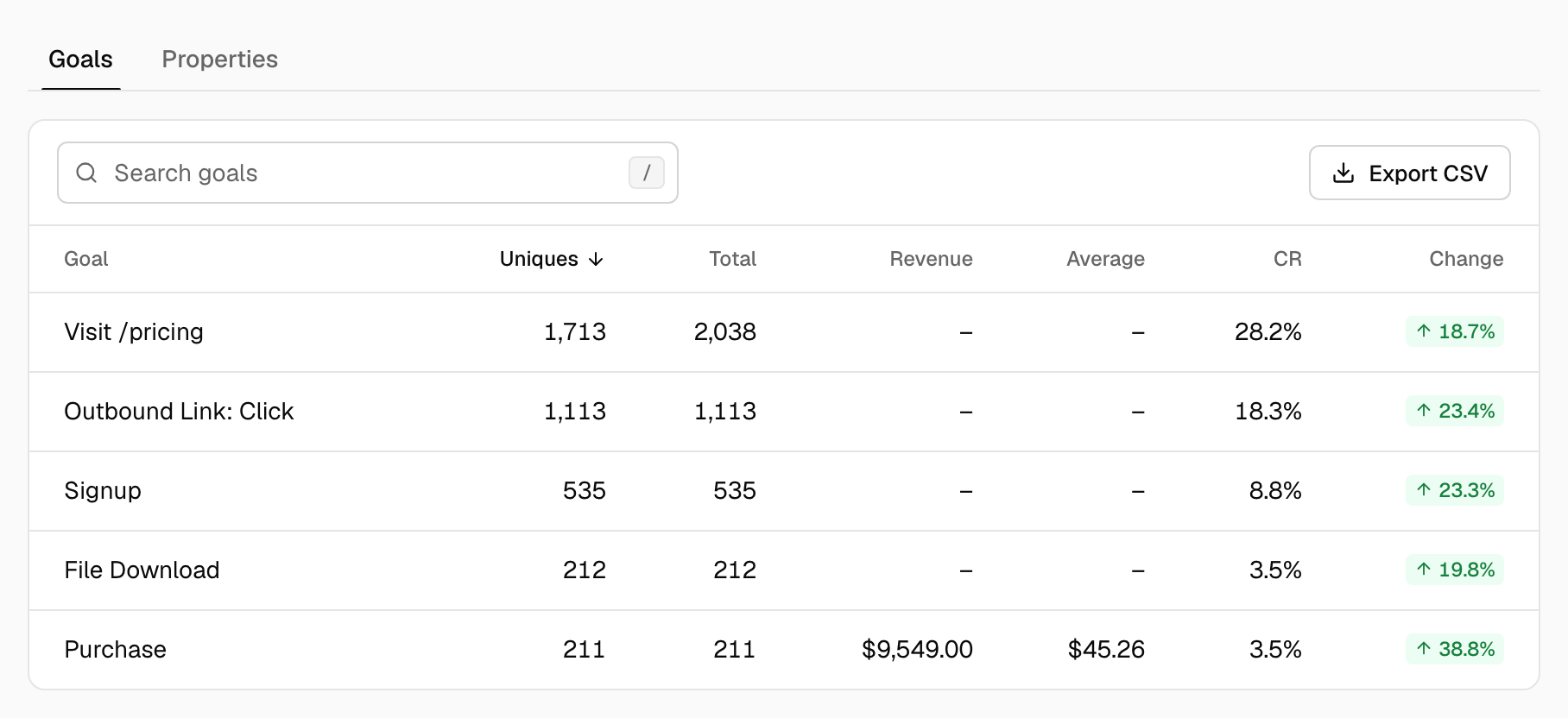
- In Behaviors → Goals, goals with a currency get Revenue and Average columns.
- Click the goal to filter the dashboard by it. The top stats then show Total revenue and Average revenue, and you can graph either one over time.
- With the goal filter on, every report (sources, pages, countries, devices) gains a revenue column, so you can see which channels bring in money.
- The CSV export and the Stats API include the revenue metrics too.
Was this helpful?
Ready to try Tidemark?
Free plan, no credit card. No cookies, no footprints.