Notes on the graph
Updated
On this page
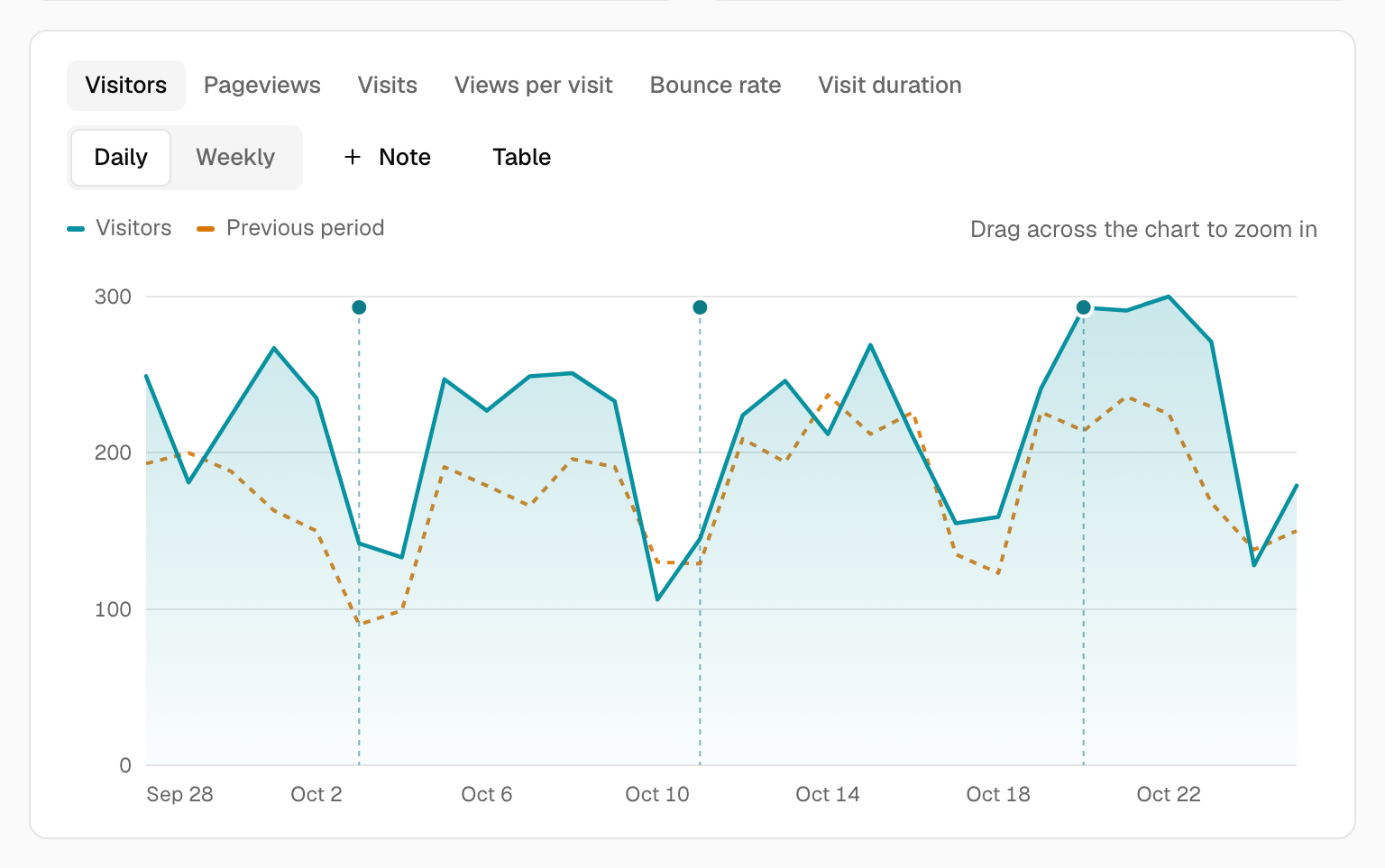
The most common question after "what happened?" is "what did we do then?". Notes let you mark a date on the visitors graph with a short remark, so a spike or a dip comes with its explanation.
Add a note
- On the dashboard, choose Add note above the graph (or click a marker and choose Add a note).
- Pick the date and write up to 280 characters, such as Launched v2 of the site.
- Choose who can see it and save.
Each note appears as a dashed marker on its day. Hover or focus a marker to read the notes for that day; click it to open them, edit one or delete it. A day with several notes lists them together. In the table view the notes have their own column.
Who can see a note
| Visibility | Who sees it |
|---|---|
| Only me | You. Nobody else can see or reach it. |
| Everyone on this site | Everyone with access to the site (owners, admins and viewers). |
| Anyone who can see the dashboard | Also visitors of a public dashboard or a shared link. |
Owners and admins can share notes with the site or the public. Viewers can keep private notes. Owners and admins can edit and delete shared notes; you can always edit and delete your own. A site can hold up to 1,000 notes.
Notes show for the period you are looking at, except in the realtime view, and aren't drawn on goal graphs.
Exports and the API
- The CSV export contains an
annotations.csvwith the date, the note and who it is shared with, for the notes you may see. - The Stats API returns them at
GET /api/v1/stats/annotations, and AI assistants can read them through MCP.
Note:
A note about a person doesn’t belong here. Notes are for what you did: a launch, a campaign, an outage.
Was this helpful?
Ready to try Tidemark?
Free plan, no credit card. No cookies, no footprints.